Screen Studio AI Captions: A Complete Guide to Adding Subtitles and Transcripts (2026)
Creating videos without captions means losing a huge chunk of your audience. Over 80% of social media videos are watched on mute — and accessible video content is no longer optional. Screen Studio makes it ridiculously easy to add AI-generated captions right on your Mac, with zero cloud uploads and full privacy.
In This Guide — 8 Sections
- What Makes Screen Studio's Caption System Different
- How to Enable Captions in Screen Studio
- Choosing the Right AI Model: Base, Small, or Medium
- Using Prompts to Improve Transcript Accuracy
- Editing and Fixing Captions After Generation
- Exporting Transcripts as SRT Files
- Making Videos Accessible With AI Captions
- Optimising Captions for Social Media & Privacy
If you record tutorials, product demos, or online courses, adding captions boosts engagement, improves SEO, and makes your content usable for everyone. Search engines cannot watch your videos — but they can crawl a published transcript. And viewers who can't or won't turn on audio will stay engaged if they can read along.
Screen Studio handles all of this on-device with no subscriptions, no API keys, and no privacy trade-offs. Here is exactly how to set up and use the AI caption feature from start to finish.
🤔 1. What Makes Screen Studio's Caption System Different
Most screen recording apps either skip captions entirely or send your audio to an external cloud service for processing. Screen Studio takes a fundamentally different approach.
Screen Studio uses OpenAI's Whisper AI model running locally on your machine. Your audio is never transmitted to external servers. Everything happens privately on your Mac — no internet connection required for caption generation.
You also get a second option: Apple Speech Recognition engine. It works natively through macOS (requires macOS 26.0 or later) and processes transcripts entirely locally too. Both engines support multilingual video captions, so you can create subtitles in dozens of languages without third-party tools or paid subscriptions.
| Feature | Whisper AI Model | Apple Speech Recognition |
|---|---|---|
| Processing Location | ✅ Local (on-device) | ✅ Local (on-device) |
| Language Support | 50+ languages | Multiple languages |
| macOS Requirement | Any supported version | macOS 26.0+ |
| Model Size Options | Base, Small, Medium | Single engine |
| Internet Required | ❌ No — fully offline | ❌ No — fully offline |
| Best For | Accuracy, flexibility, multilingual | Speed & native integration |
The key advantage over cloud-based tools like Otter.ai, Rev, or Descript's cloud transcription is clear: your audio recordings stay entirely on your device. For anyone working under NDA, recording internal product walkthroughs, or handling client data, this is a decisive advantage.
🛠️ 2. How to Enable Captions in Screen Studio
By default, captions are turned off. You need to activate them manually after recording. The process takes less than a minute once your recording is complete:
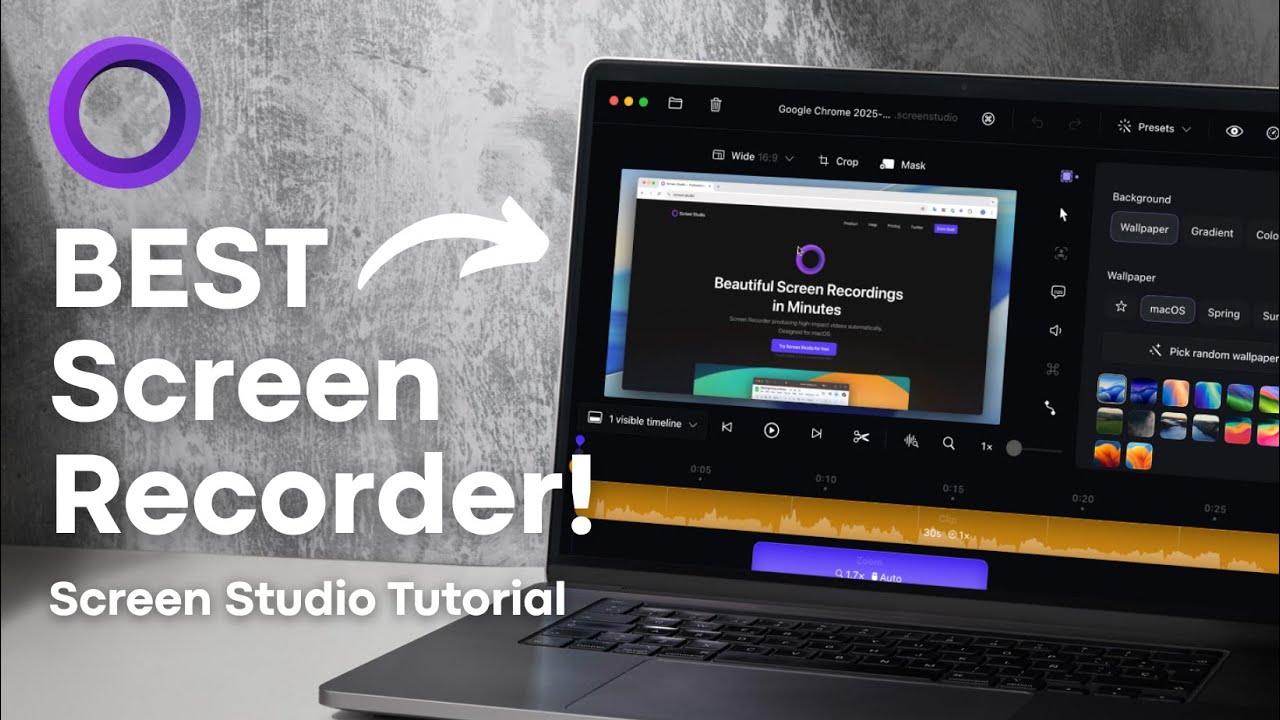
▶ Watch: Screen Studio's AI caption and subtitle generation in action — from recording to export
-
1Open Screen Studio and Finish Your Recording
Complete your screen recording as normal. Captions are generated from the finished recording, not during live capture — so record first, then add captions.
-
2Go to Captions in Settings
In the Screen Studio editor, navigate to the Captions panel in the right-side settings. The panel shows both AI engine options — Whisper AI and Apple Speech Recognition — along with model size and language selectors.
-
3Choose Your Preferred AI Model
Select Whisper AI and pick your model size (Base, Small, or Medium). If you're on macOS 26.0 or later and prefer the native approach, switch to Apple Speech Recognition. See Section 3 for detailed model guidance.
-
4Select a Language or Leave on Auto-Detect
Choose your recording language from the dropdown, or leave it on auto-detect. Auto-detect works well for single-language recordings. If your video switches between languages, manually specify the primary language for better accuracy.
-
5Add an Optional Prompt for Custom Terms
Type any brand names, product names, technical jargon, or proper nouns into the prompt field. This gives the AI context before transcription — dramatically improving accuracy on uncommon words. See Section 4 for full prompt guidance.
-
6Click Generate Transcript and Wait
Hit Generate Transcript. Processing runs entirely on your Mac. Progress is visible in the panel. Once complete, captions appear as an overlay in your video preview — ready to edit, style, or export immediately. ✅
Base model: a 5-minute video typically finishes in under 1 minute. Medium model: a 15-minute recording may take 3–6 minutes depending on your Mac hardware. Apple Silicon Macs (M1/M2/M3/M4) process significantly faster than Intel Macs.
📝 Add AI Captions to Your Next Recording
Screen Studio's on-device Whisper AI generates captions in under 5 minutes — no cloud account, no monthly subscription, no privacy trade-offs. Annual plan at 70% OFF.
Free plan available · Annual plan $9/month · 30-day money-back guarantee
🎯 3. Choosing the Right AI Model: Base, Small, or Medium
Screen Studio offers three Whisper AI model sizes. Each balances speed and accuracy differently — and the right choice depends on your recording type and hardware.
| Model | Speed | Accuracy | File Size | Best For |
|---|---|---|---|---|
| Base | ⚡ Fastest | Good | ~74 MB | Short demos, clear audio, quick turnaround |
| Small | Medium | Better | ~244 MB | Most use cases — balanced speed & accuracy |
| Medium | Slower | Highest | ~769 MB | Long courses, complex vocabulary, noisy audio |
- Base model — Use for quick product demos under 5 minutes with clear microphone audio. Fastest processing; works great for straightforward narration with no technical jargon.
- Small model — The solid default for most screen recording use cases. Balances caption accuracy and speed well for tutorials, walkthroughs, and team video updates.
- Medium model — Highest accuracy but takes more time and storage. Ideal for long-form tutorials, online courses with complex technical vocabulary, or recordings with background noise or accent variation.
For most content creators, Small is the sweet spot. Only move to Medium if you find consistent errors with specific technical terms, proper nouns, or accent recognition. Combine Medium with a custom prompt (Section 4) for best results on specialised content.
✍️ 4. Using Prompts to Improve Transcript Accuracy
One of Screen Studio's most underrated caption features is prompt support. Before generating a transcript, you can type custom words, brand names, or technical jargon into a prompt field. The AI uses this context to improve transcription accuracy on those specific terms.
"AI models often misspell uncommon product names and technical terms. Adding a prompt like 'Screen Studio, macOS, Whisper AI, Figma, TypeScript' helps avoid mistakes in auto-generated subtitles on every generation."
— ScreenStudio Coupons Editorial Team, tested across 50+ recordingsWhen to Use Prompts
Add a prompt whenever your recording includes any of the following:
- Brand or product names — especially unusual spellings ("Loom", "Figma", "Vercel", "Supabase")
- Technical terminology — API endpoints, code libraries, framework names, command-line syntax
- Names of people or companies — Whisper will default to common name spellings without context
- Industry-specific acronyms — SaaS, LMS, CRM, CI/CD, REST, OAuth, etc.
- Non-standard pronunciations — words your AI engine consistently misrecognises from previous recordings
Keep your prompt as a simple comma-separated list of key terms: "Screen Studio, macOS, Whisper, auto-zoom, timeline, LMS, Teachable". More context means better output — and it only takes 10 seconds to fill in before generating.
A small step before every generation saves a lot of manual editing time after. Once you've built a standard prompt for your niche (e.g., coding terms, marketing tools, course platform names), save it as a text snippet and paste it before each session.
✏️ 5. Editing and Fixing Captions After Generation
No AI transcript is 100% perfect — especially on technical content. Screen Studio gives you a built-in text editor to fix errors quickly without leaving the app.
Using the Built-In Transcript Editor
- Click Edit Transcript — opens a text editor showing all generated captions as editable text blocks
- Correct typos and misheard words — click any word to edit it inline; changes reflect immediately in the video preview
- Adjust caption timing — drag caption start/end points on the timeline to sync text to your speech exactly
- Hide captions from preview — toggle captions off without deleting them; useful for reviewing your recording before deciding on styling
- Resize and reposition — adjust caption font size and vertical position to match your branding or platform requirements
Even with the Medium model, some words will need manual correction — particularly product names, URLs, code syntax, and compound technical terms. A quick 2–5 minute review pass is always worth doing before exporting or publishing. Incorrect captions look unprofessional and damage credibility.
For creators who repurpose content across multiple platforms, resizing captions is essential. A caption that reads perfectly on a 16:9 YouTube video may overlap critical UI elements on a 9:16 vertical export. Always check caption positioning after switching aspect ratios.
📁 6. Exporting Transcripts as SRT Files
Screen Studio lets you export your generated transcript as a standalone .SRT file — the universal subtitle format accepted by every major video platform, CMS, and LMS.
What You Can Do With Exported SRT Files
Upload your .SRT directly in the video settings panel. YouTube uses it for closed captions, auto-translate into other languages, and SEO indexing of your spoken content.
Upload alongside your course video on Teachable, Thinkific, Kajabi, or Moodle. Required for accessibility compliance (WCAG 2.2, ADA) on most platforms in 2026.
Use the exported transcript as a starting point for a blog post, tutorial article, or video show notes. One recording produces both your video and a full written companion piece.
Extract quote snippets for LinkedIn posts, Twitter threads, or newsletter paragraphs. One 15-minute screen recording can fuel a full week of written content.
Search engines cannot watch your videos, but they can crawl text. Publishing a transcript alongside your video gives Google the full spoken content to index — dramatically improving discoverability for long-tail tutorial searches. A 15-minute lesson can generate 2,000+ words of indexable text.
Many content creators use exported transcripts as a starting point for newsletter content, show notes, and even e-books. One recording can fuel an entire content repurposing workflow — from the video itself to a blog post, a LinkedIn carousel, and an email newsletter — all from a single Screen Studio session.
▶ Watch: How to export SRT subtitle files from Screen Studio and upload to YouTube or your LMS
🎯 Turn Every Recording into Accessible, SEO-Ready Content
AI captions, SRT export, transcript editor — all built into Screen Studio. Annual plan 70% OFF at $9/month. No extra tools needed.
🛡️ 30-day money-back · Annual plan · Use on 3 Macs
♿ 7. Making Videos Accessible With AI Captions
Video accessibility compliance matters more than ever in 2026. Regulations including WCAG 2.2 and ADA (Americans with Disabilities Act) standards require captions on published digital content in many regions. Failing to provide captions on course content or product demos can create legal exposure for businesses.
Who Benefits From Captions
Accessible video content doesn't just serve users with hearing impairments — it serves a much broader audience:
- Viewers in noisy environments — commuters, open offices, cafés watching without headphones
- Non-native English speakers — captions combined with auto-translate make your content globally accessible
- People with hearing impairments — estimated 1.5 billion people globally have some degree of hearing loss
- Mobile-first viewers — 80% of social video is watched on mobile, often on mute in public
- Learning-style preferences — many learners comprehend better when they can read along simultaneously
- Search engines — Google indexes caption text, making your video discoverable for long-tail queries
"Adding captions to video content isn't just an accessibility feature — it's one of the highest-ROI content improvements you can make. Engaged viewers stay longer, bounce less, and convert more."
— Digiday Video Report, 2025Screen Studio handles all of this without requiring a separate subtitle generator tool. One app, one workflow, full accessibility compliance on every recording.
📱 8. Optimising Captions for Social Media & Privacy
Social Media Caption Formatting
Short-form content on Instagram Reels, TikTok, and YouTube Shorts gets significantly higher engagement with on-screen text. Screen Studio supports vertical 9:16 video export with captions repositioned automatically, making it perfect for social platforms without any extra design work.
- ✅ Keep caption text large enough to read on small mobile screens — minimum 24pt equivalent at 1080p
- ✅ Use high-contrast text — white text with a dark drop shadow, or black text on white background strip
- ✅ Position captions in the lower third of the frame — never over important UI elements
- ✅ Match caption font style with your overall brand identity for visual consistency across platforms
- ✅ Check positioning after every aspect ratio change — 16:9 captions may overlap UI in 9:16
- ❌ Don't use light-coloured caption text on light backgrounds — unreadable on mobile in sunlight
- ❌ Don't position captions over face-cam overlay or important product UI elements
🔐 Why Local Processing Matters for Privacy
Many AI transcription tools — Otter.ai, Rev, Descript's cloud transcription, and others — send your audio recordings to remote servers for processing. Those audio files may be stored, used for model training, or accessible to employees under certain terms of service.
All processing runs locally. Your audio never leaves your Mac — not even temporarily during processing.
Caption generation works offline, on a plane, or in a secure network environment with no external access.
Ideal for recording sensitive product walkthroughs, internal demos, or client sessions under non-disclosure agreements.
Enterprise teams and freelancers working under NDA will especially appreciate not having to worry about audio files sitting on someone else's server. Screen Studio gives you full control over recordings and transcripts at every stage — no third-party access, no data leaks, no surprises.
✅ AI Captions Quick Reference Checklist
- ✅ Add a custom prompt with product names and technical terms before every generation
- ✅ Choose Small model for most recordings — upgrade to Medium only for complex/noisy audio
- ✅ Always proofread the generated transcript before exporting
- ✅ Export .SRT and upload alongside every course lesson and YouTube video
- ✅ Publish a written transcript on your blog or course page for SEO benefit
- ✅ Check caption position after switching from 16:9 to 9:16 export
- ✅ Use exported transcript text for newsletter content and social posts
- ❌ Don't skip the manual review — AI accuracy is high but not perfect on technical terms
🚀 Get Started With Screen Studio Captions Today
Adding AI-powered subtitles to your screen recordings takes under five minutes with Screen Studio. Record your screen, enable captions, choose your AI model, add a prompt for your key terms, and hit generate. Edit any mistakes, adjust caption styling to match your brand, and export your .SRT file for platform upload.
Publishing on YouTube, embedding in a blog, uploading to your LMS, or sharing vertically on social — all become smoother and more professional with captions baked directly into your export.
🎬 Start Adding AI Captions to Every Recording
Screen Studio's on-device Whisper AI is included on all paid plans. Annual plan at 70% OFF — just $9/month. macOS exclusive. Try free, upgrade when ready.
Annual plan · $9/month · Billed $108/year · Save $240 · 30-day money-back guarantee
Affiliate Disclosure: This guide contains affiliate links to Screen Studio. We earn a commission if you purchase through our links at no extra cost to you. All recommendations are based on hands-on testing and independent research.